 Tin HatLuesHub
Get Tin Hat / Windows
Tin Hat for Windows
One installer and about a minute. No admin rights needed, and after this Tin Hat keeps itself up to date.
The Windows download is being updated right now. Try again in a few minutes, or use Tin Hat in your browser meanwhile.
Heads up: Windows will warn you, once. Your browser and then Windows itself will say they don't recognise this app. That's expected, because Tin Hat isn't code-signed yet. Below is exactly what to click, and why it's safe.
-
Download the installer
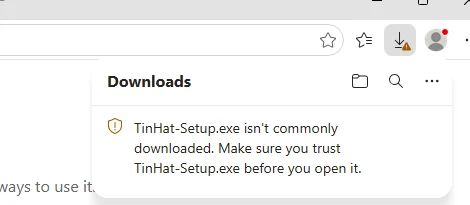
Click Download. In Microsoft Edge the download panel opens and says TinHat-Setup.exe isn't commonly downloaded.
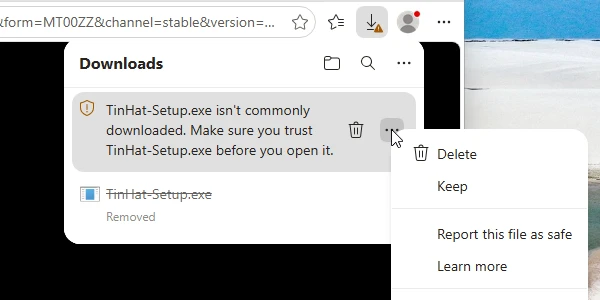
- Point at the download and click …, then Keep.
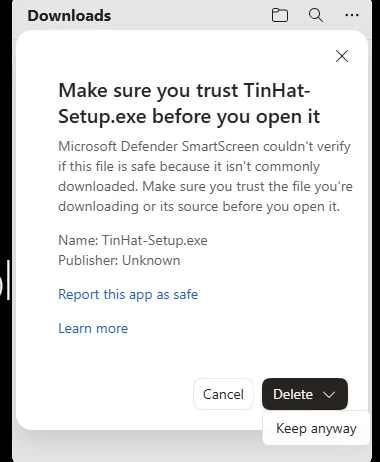
- Edge asks you to make sure you trust the file. Click the ∨ arrow next to Delete, then Keep anyway.
Chrome or Firefox? They may ask too. Choose Keep in Chrome or Allow download in Firefox.
-
Open it, and tell SmartScreen it's fine
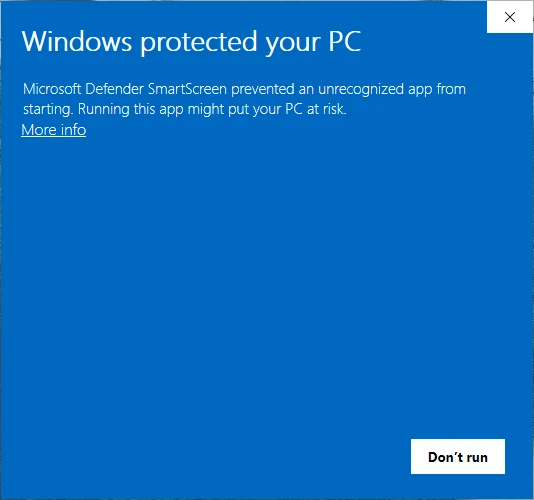
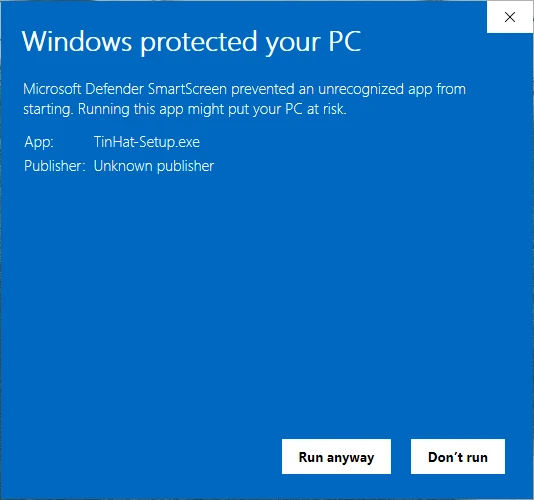
Open TinHat-Setup.exe from the download panel or your Downloads folder. Windows shows a blue box: Windows protected your PC. That's Microsoft Defender SmartScreen.
- Click More info (the small link under the text).
- Check it says App: TinHat-Setup.exe, then click Run anyway.
"Publisher: Unknown publisher" is normal for Tin Hat. Here's why. This is the last warning you'll see: once Tin Hat is installed it updates itself without any of this.
-
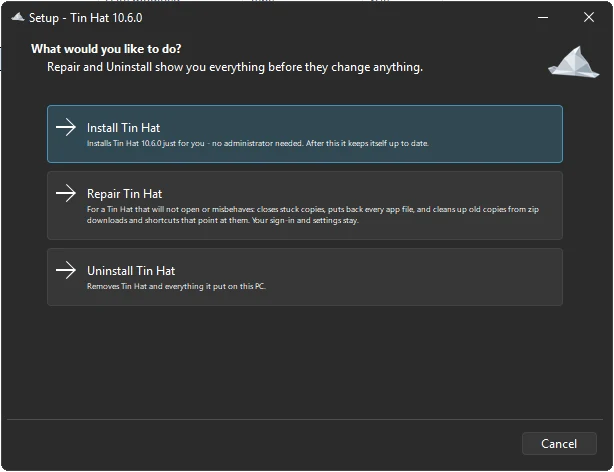
Pick Install Tin Hat
The installer opens on three choices. Pick Install Tin Hat. There's no admin prompt: it installs just for your Windows account and adds Tin Hat to the Start menu and your desktop.
Repair and Uninstall live here too. More on Repair.
-
Sign in, and you're done
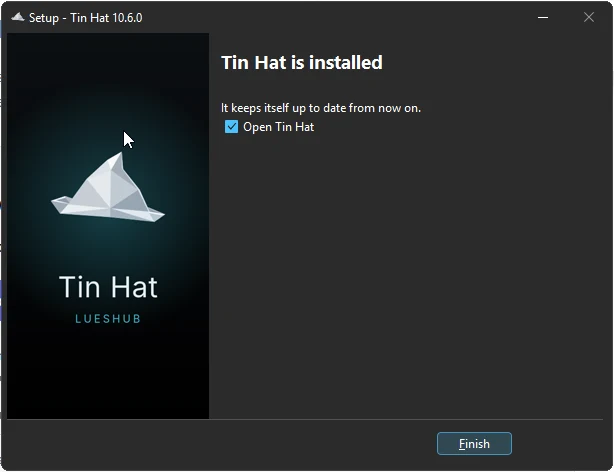
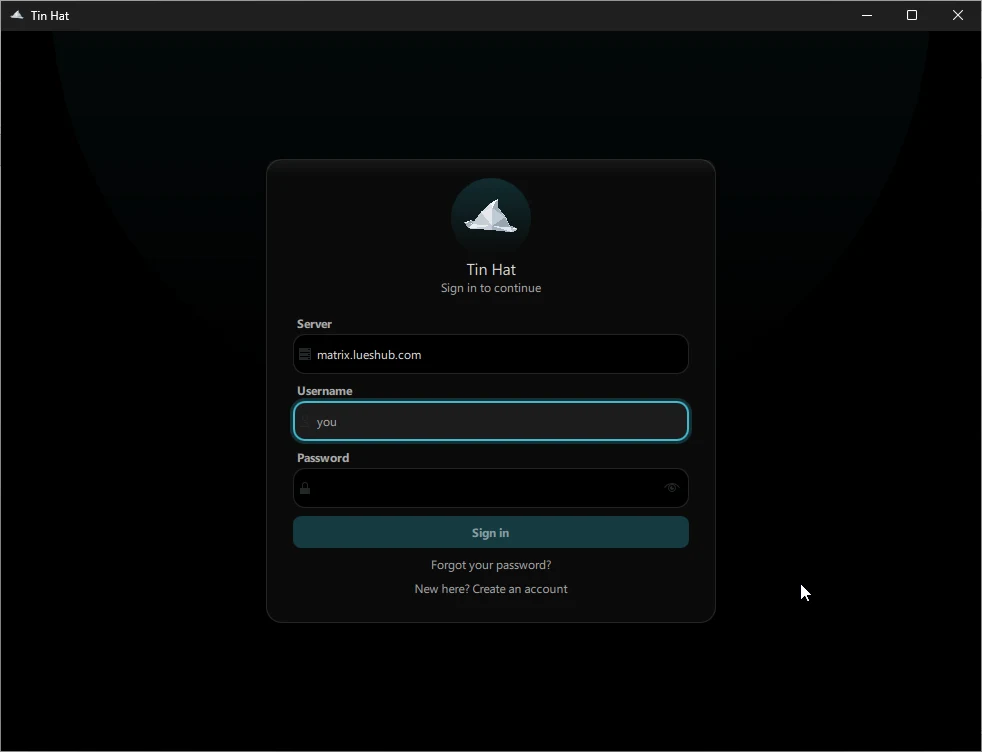
Leave Open Tin Hat ticked and click Finish. Sign in with your LuesHub account (
@you:lueshub.com), or click New here? Create an account and use the invite code someone in the crew sent you.That's it. From now on Tin Hat updates itself. When a new version is out you'll see a banner with Update now. You never need to come back here.
SmartScreen, explained
Why does Windows warn me?
Short version: Windows is saying "I don't know this app yet", not "this app is dangerous".
What SmartScreen is
Microsoft Defender SmartScreen checks every download against a reputation list. Apps signed with a paid certificate from a known publisher pass silently. Anything newer or unsigned gets the blue box until lots of people have run it.
Why Tin Hat trips it
Tin Hat is made by the crew, for the crew. It isn't signed with a code-signing certificate, which costs money every year and needs a registered business. So Windows shows Publisher: Unknown and asks you to confirm.
Why it's fine to click through
You're downloading straight from repo.lueshub.com over HTTPS, the same server your chats run on. After this one install the app updates itself and checks every update's SHA-256 checksum before it installs it, so you won't see the warning again.
Want to double-check the file?
Open PowerShell and run this. The result should match the checksum below exactly.
Get-FileHash "$HOME\Downloads\TinHat-Setup.exe"
SHA-256 of the current installer
Repair & uninstall
Won't open? Ran it from a .zip before?
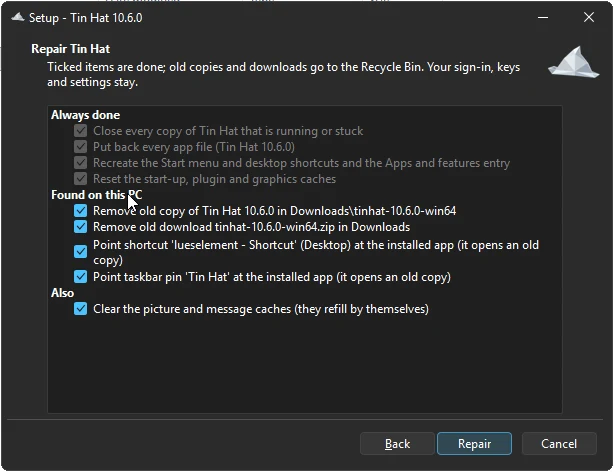
Run TinHat-Setup.exe again and pick Repair. It closes stuck copies, puts back every app file, cleans up old copies from zip downloads and points your shortcuts and taskbar pins at the installed app.
It shows you everything before it changes anything. Old copies go to the Recycle Bin, and your sign-in and settings stay.
To remove Tin Hat, pick Uninstall in the same installer, or go to Windows Settings → Apps → Installed apps → Tin Hat → Uninstall.
Questions
Do I need to be an administrator?
No. Tin Hat installs just for your Windows account, so there's no admin prompt and nothing is written system-wide.
How do updates work?
Tin Hat checks for a new version when it starts and shows a banner with Update now. It downloads the update from this server, checks its checksum and restarts into it. The changelog lists what changed.
Which Windows versions work?
Windows 10 (version 1809 or newer) and Windows 11, 64-bit.
Can I try it without installing anything?
Yes. tinhat.lueshub.com is the same app in your browser, with the same account. More about the web app.
Something went wrong
Run the installer and pick Repair first. Still stuck? File a report (no account needed), or use the bug button inside Tin Hat, which attaches the logs for you.